How It Works
Create a professional email signature in under 2 minutes.
No design skills required.
01
Fill in Your Details
Enter your name, title, company, phone, email, and website. Add your social media links if you'd like them in your signature.

02
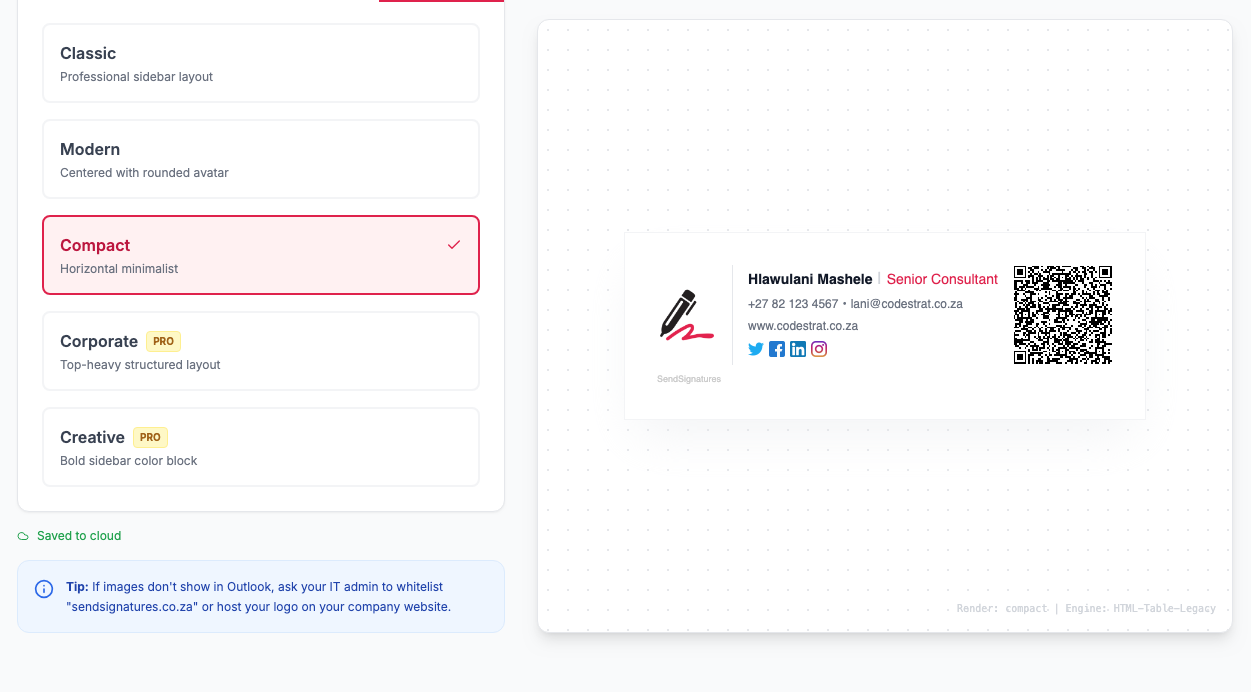
Choose a Template
Pick from 5 professional templates. Customize the accent color to match your brand. Upload your logo or profile photo.
03
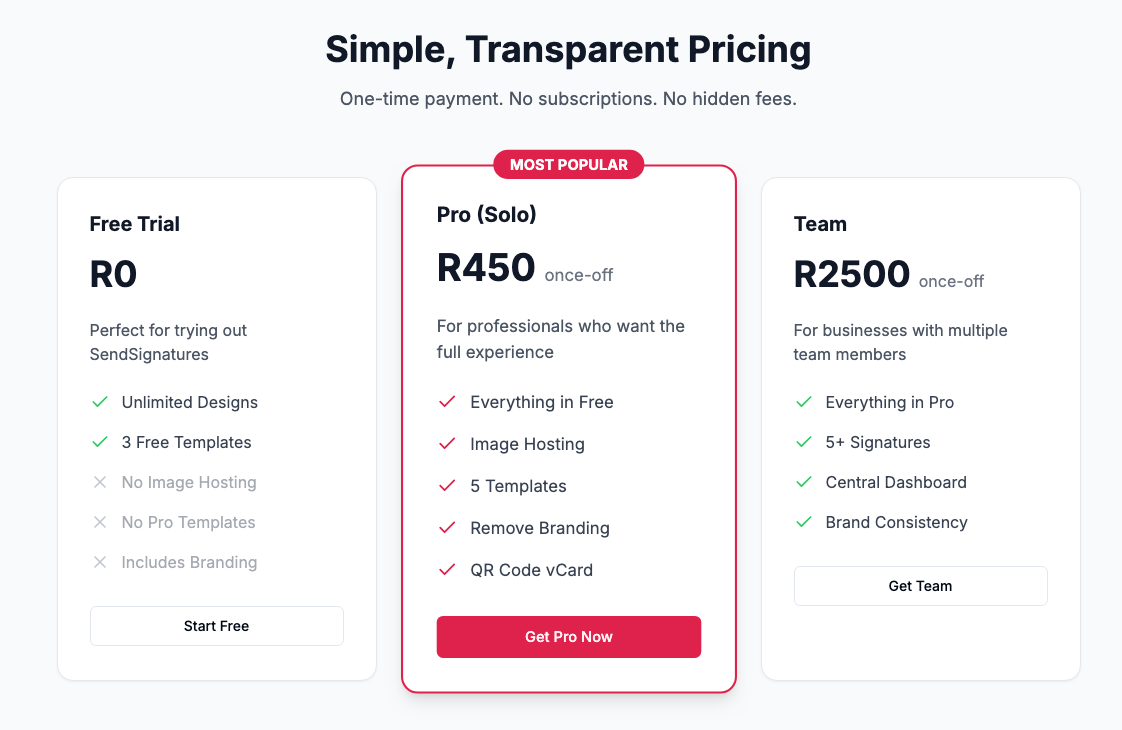
Upgrade (Optional)
Free users get 3 templates with branding. Upgrade to Pro for all templates, hosted images, and branding removal.
04
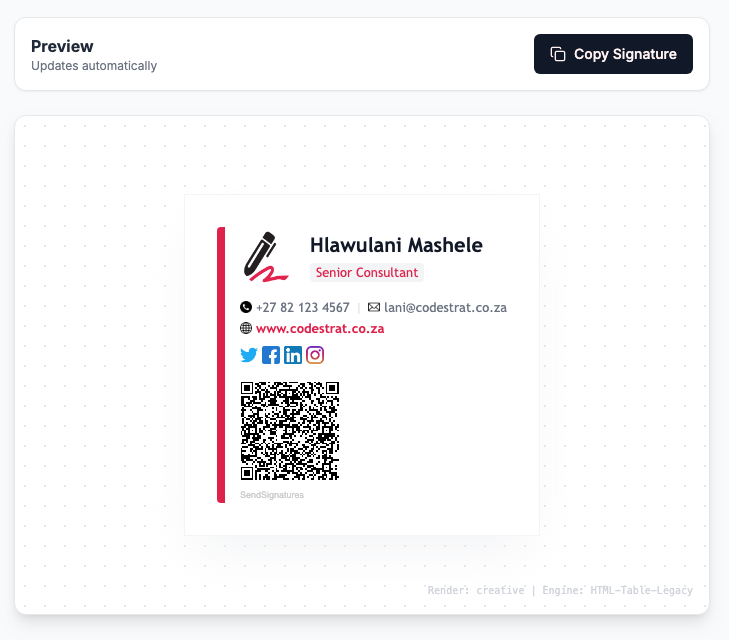
Copy & Paste
Click 'Copy Signature' and paste it into your email client's signature settings. Works with Outlook, Gmail, and more.
Works With Your Email Client
Microsoft Outlook
- 1.Open Outlook and go to File → Options
- 2.Click Mail → Signatures
- 3.Create a new signature and paste
- 4.Set as default for new messages
Gmail
- 1.Click the gear icon → See all settings
- 2.Scroll to "Signature" section
- 3.Create new and paste your signature
- 4.Save changes at the bottom
Apple Mail
- 1.Go to Mail → Settings → Signatures
- 2.Click + to create new signature
- 3.Paste your signature
- 4.Assign to your email account
Thunderbird
- 1.Go to Account Settings
- 2.Check "Use HTML" under signature
- 3.Paste your signature
- 4.Click OK to save